Prepare a readable photo and signature for an online form
Check the portal’s format, dimensions and file-size rules before cropping or compressing. Keep originals and inspect the final preview.
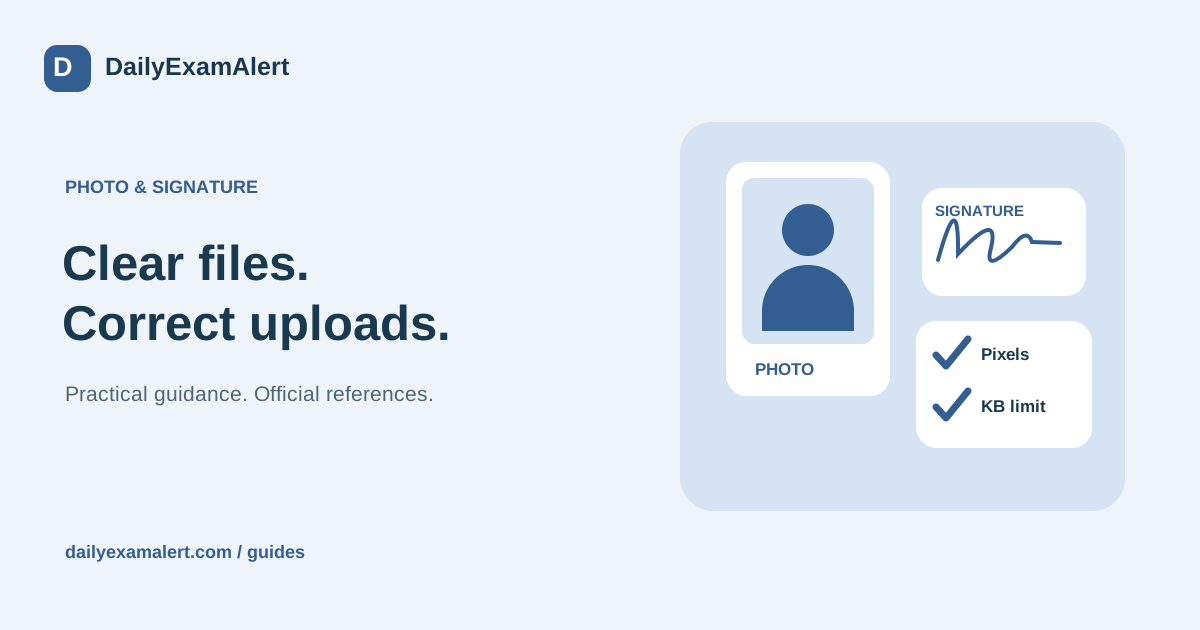
A file can upload successfully and still be unsuitable if the face, signature or certificate text is unreadable. The goal is not simply the smallest possible file. Prepare a clear copy that meets the exact portal instructions while retaining an untouched original in your private folder.
Write down the requirements first
For every upload field, record the allowed file type, minimum and maximum file size, required dimensions and any additional instructions. A photograph, signature and certificate can each have different limits on the same application. Do not assume that a preset labelled “exam photo” is accepted everywhere.
The JEE Main information bulletin illustrates why reading the current instructions matters: it describes distinct photograph, signature and document uploads, alongside a live-photograph step. Use the rules for the actual exam cycle and portal in front of you. An old saved image may no longer satisfy a new process even when its filename looks correct.
Keep the original and make a working copy
Start with a clear photograph or scan. Place a document flat, include the whole required area and avoid glare or shadows across important text. For signatures, use the pen colour and background specified by the authority. Do not trace, substitute or generate someone’s signature.
Save the original separately before editing. Crop only the unnecessary surrounding space. Check that the edge of a certificate, part of a name or a seal has not been removed. If the portal requires several pages in one PDF, put them in the correct order and inspect every page before upload.
Understand dimensions and file size
Pixel dimensions describe the width and height of an image. File size describes how much storage the saved file uses. Changing one can affect the other, but they are not interchangeable. A picture can have the correct width and still exceed the file-size limit; it can also be small enough while having insufficient detail.
When a rule specifies centimetres or millimetres, check whether it also states a resolution. Conversion to pixels needs that resolution: pixels equal centimetres divided by 2.54, multiplied by dots per inch. Do not choose a random resolution and assume the resulting image meets the authority’s specification. Use the portal’s example or helpdesk when the instruction is ambiguous.
Compress gradually and compare readability
Resize a working copy to the required dimensions, then reduce compression quality in small steps if necessary. View the result at normal size and zoom in to check important detail. A blurred signature should be scanned again rather than sharpened repeatedly until its lines look different.
Changing a filename from .png to .jpg does not convert the image. Use an actual conversion tool and reopen the result. For PDFs, check that all pages are present after compression or merging. Never alter factual certificate content to fit a file-size limit; compression should change storage requirements, not the information shown.
Check the uploaded preview and protect private files
Read the portal’s preview after each upload. Make sure the photograph appears in the photograph field and the signature in the signature field. Check orientation, visible detail and any cropping introduced by the portal. Keep a local record of the exact version submitted, together with the final application confirmation.
DailyExamAlert’s tools can help prepare images and documents. Check whether a particular tool works locally or sends a file before using it with sensitive information. Public sharing and QR codes are appropriate for public links, not for identity documents, signatures or application passwords. If you request private form assistance, review the document-handling notice and send only what is needed for that request.
Official references
Reference links checked on 8 October 2026. This is general process guidance, not a live application announcement. Read the latest official instructions for your specific opportunity.